How to Adjust Mouse DPI for Different Tasks
A single Mouse DPI rarely suits every task. Learn how to adjust sensitivity and switch DPI profiles for gaming, photo editing, and daily workflows.
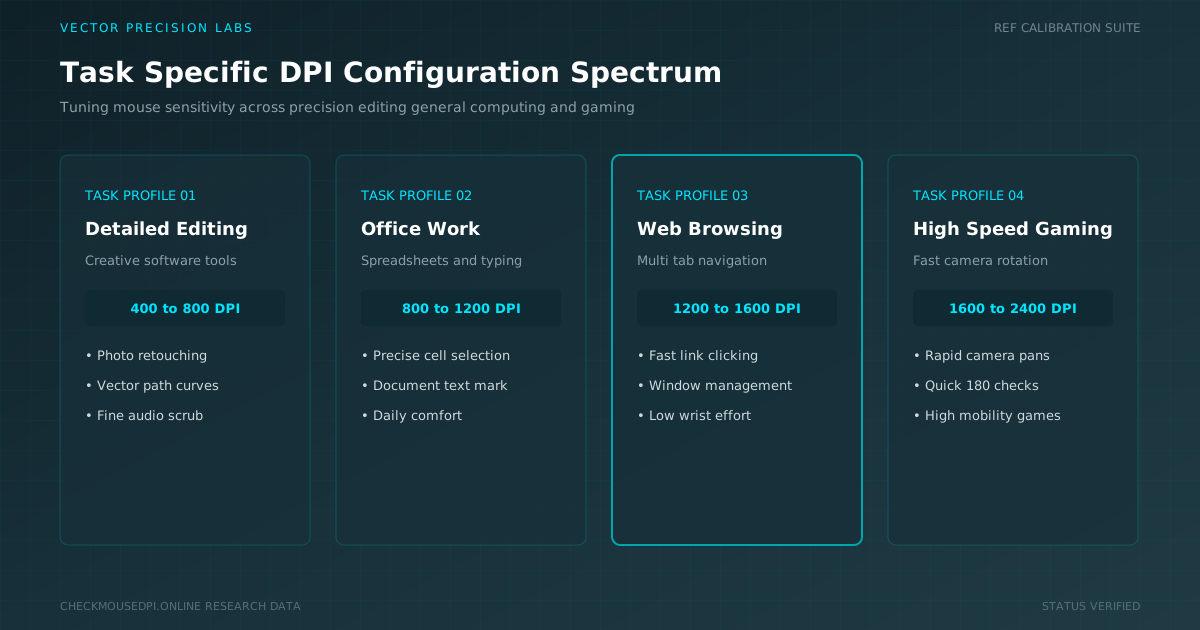
A single Mouse DPI number rarely suits everything you do in one sitting. Reading email, editing a photo, and aiming in a fast game all ask your cursor to behave differently. Learning to adjust mouse DPI for different tasks keeps every movement matched to the job in front of you.
Why One DPI Never Fits Every Task
Every activity places a different demand on cursor sensitivity. Detailed editing wants a slow, obedient pointer, while jumping between browser tabs wants speed instead. Locking in one fixed number forces a compromise that never feels quite right for either extreme.
A mouse that supports fast DPI settings changes turns that compromise into a non-issue. Instead of settling for average performance everywhere, each task gets a setting built specifically for it.
Find Your Comfortable Starting Point
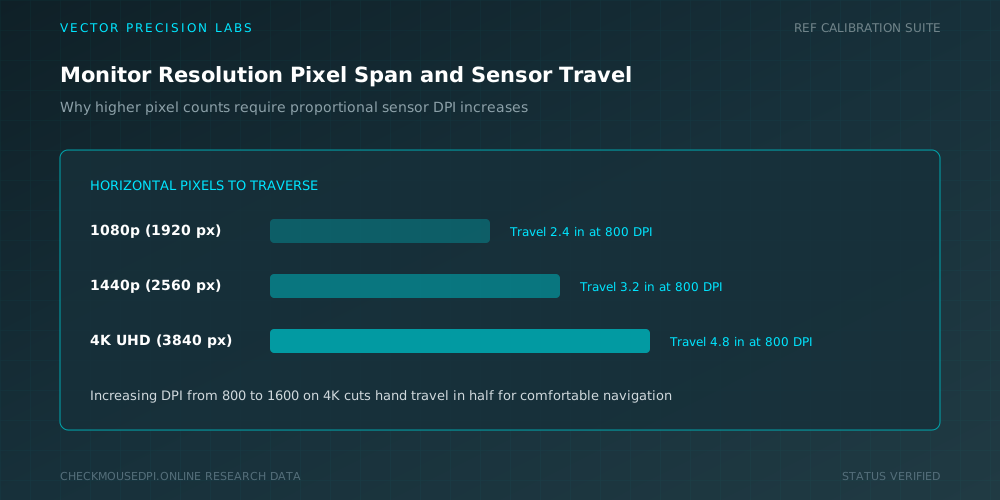
Your baseline DPI should match your screen resolution before anything else. A number that feels balanced on a 1080p monitor often feels sluggish on a 4K monitor, since the cursor suddenly has far more pixels left to cross.
Test this by sweeping the cursor from one edge of the screen to the other. A single relaxed wrist motion should cover the distance. Needing to lift the mouse mid-sweep is a clear sign your pointer speed sits too low for your display.
| Screen Resolution | Suggested Baseline DPI | Why It Feels Right |
|---|---|---|
| 1080p (Full HD) | 800 - 1200 DPI | Shorter distance for cursor to travel |
| 1440p (QHD) | 1200 - 1600 DPI | Moderate increase in pixel count |
| 4K (UHD) | 1600 - 2400 DPI | Cursor needs far more pixels covered |
| Multi-Monitor Setup | 1800 - 2400 DPI | Less lifting across wide desk space |
Slow Down DPI for Precision Work
Detailed tasks reward patience over speed. Selecting a single layer, tracing an outline, or nudging an object by a few pixels all demand fine control rather than quick travel across the desktop.
Dropping to a lower number gives you pixel-perfect accuracy, since each small hand movement only shifts the cursor a short, predictable distance.
Speed Up DPI for Everyday Browsing
General computer use rarely needs that same level of restraint. Scrolling through a page, clicking a link, or switching between open windows benefits from a livelier cursor speed instead.
A setting in the high DPI range removes the small delay of dragging your hand across a large mousepad just to reach the opposite side of the screen.
Match DPI to Creative Editing Tasks
Photo editing, illustration, and similar software reward the same careful approach as any other precision task. A low DPI range keeps brush strokes, crop handles, and selection tools predictable under your hand.
Many creative professionals keep a dedicated setting just for this purpose, switching back the moment they return to general file browsing or communication tools.
Fine-Tune DPI for Spreadsheets and Typing
Spreadsheet work sits somewhere between the two extremes described above. Jumping across dozens of columns wants speed, while selecting one exact cell wants restraint instead.
A mid-range number, combined with quick taps of the DPI switch button when precision matters, handles both halves of the task without forcing a permanent trade-off.
Boost DPI for Fast-Paced Gaming
Gaming DPI preferences shift depending on genre far more than in ordinary computer use. Open-world and strategy titles often reward a faster setting for covering large maps quickly.
Competitive shooters usually pull in the opposite direction, favoring a controlled, lower number paired with a larger mousepad for steady aim.
Save Time With Custom DPI Profiles
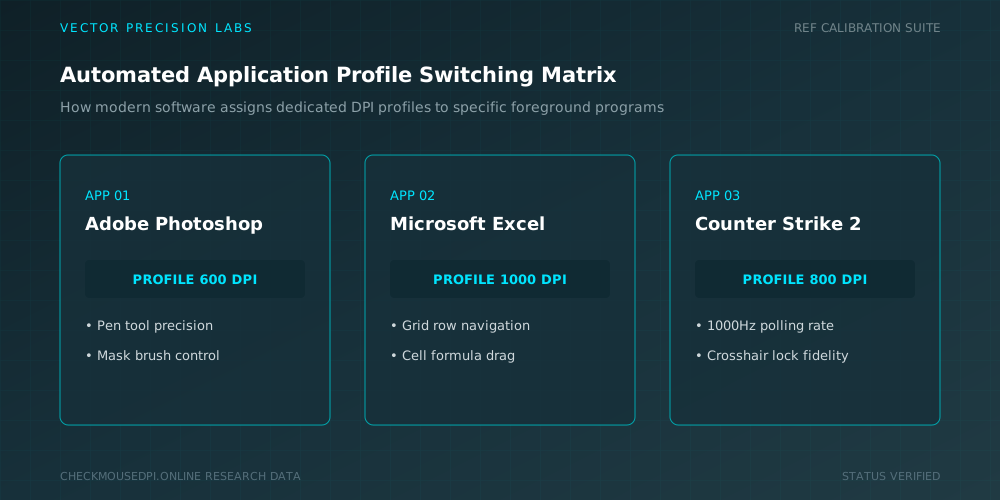
A saved DPI profile removes the need to manually reset sensitivity every time your task changes throughout the day.
Many manufacturer applications let a profile trigger automatically whenever a specific program opens, keeping the correct setting active without a single extra click.
Switch DPI Without Losing Your Flow
Reaching for the DPI button mid-task should feel effortless rather than disruptive. Placing your most-used settings on adjacent stages keeps the transition quick and predictable.
It also helps to disable mouse acceleration and turn off enhance pointer precision in your operating system, since both features distort a clean 1-to-1 relationship between hand movement and cursor response.
Build a DPI Routine That Sticks
Testing new numbers works best in small steps rather than dramatic jumps. Adjust by a couple hundred at a time and use the mouse normally before judging the result.
Over a week or two, your hand builds genuine muscle memory around each setting, turning conscious adjustment into an automatic habit that supports real workflow efficiency.
Conclusion
Matching sensitivity to the task at hand, rather than settling for one fixed number, is really what it means to adjust mouse DPI for different tasks well. Precision work, everyday browsing, spreadsheets, and gaming each earn better results once given their own dedicated setting.
Saved profiles and a quick switch button turn this into a habit rather than a chore, letting your mouse sensitivity stay comfortable and consistent no matter what the next task on your screen happens to be.
Elena Rostova (Input Lab)
Researches human-computer interaction, optical sensor telemetry, and esports hardware performance at Vector Precision Labs.