How to Compare Mouse DPI Across Different Brands
Learn why identical DPI settings feel different across mouse brands, how sensor placement affects aim, and how to normalize sensitivity using eDPI and cm/360.
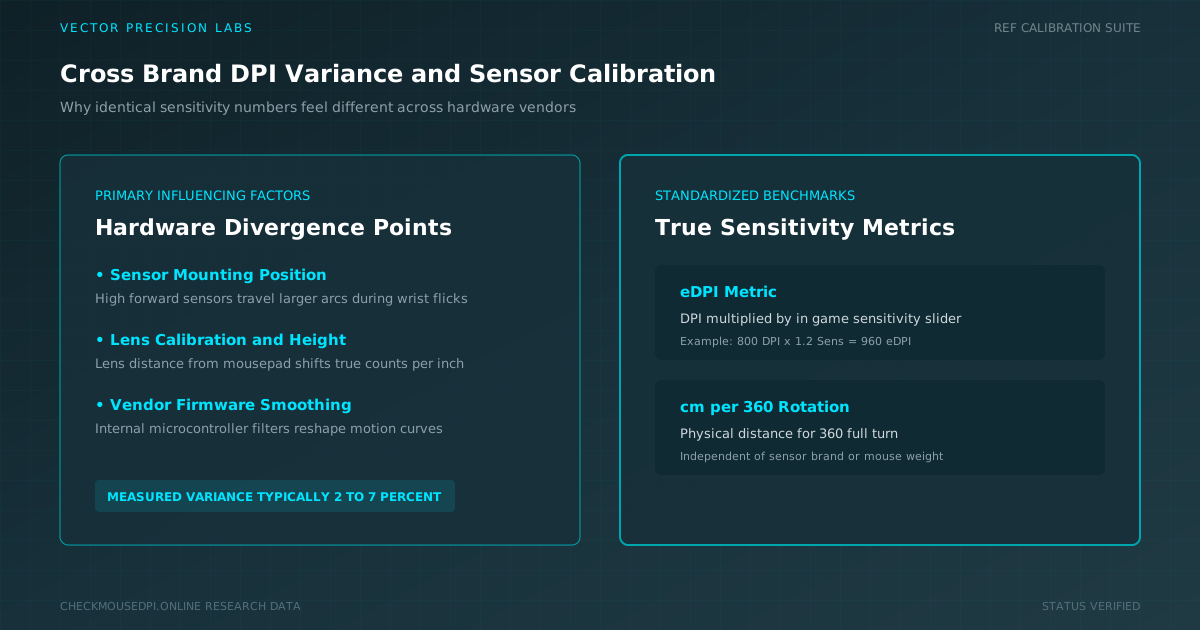
Typing the same number into two different mice rarely produces the same feel. Mouse DPI looks like a fixed unit on a spec sheet, yet the sensor, firmware, and build of each device quietly reshape what that number actually does. Learning to compare mouse DPI properly means looking past the label and testing what the hardware really delivers.
Why the Same DPI Feels Different on Every Mouse
Two mice set to an identical value can still feel worlds apart once you start moving them. This happens because DPI comparison is never just about the number, it also depends on how each brand tunes its sensor and firmware around that figure.
Sensor placement, lens shape, and internal processing all shift the DPI variance between devices, even when two mice technically share the same rated sensor.
Understand the Role of the Mouse Sensor
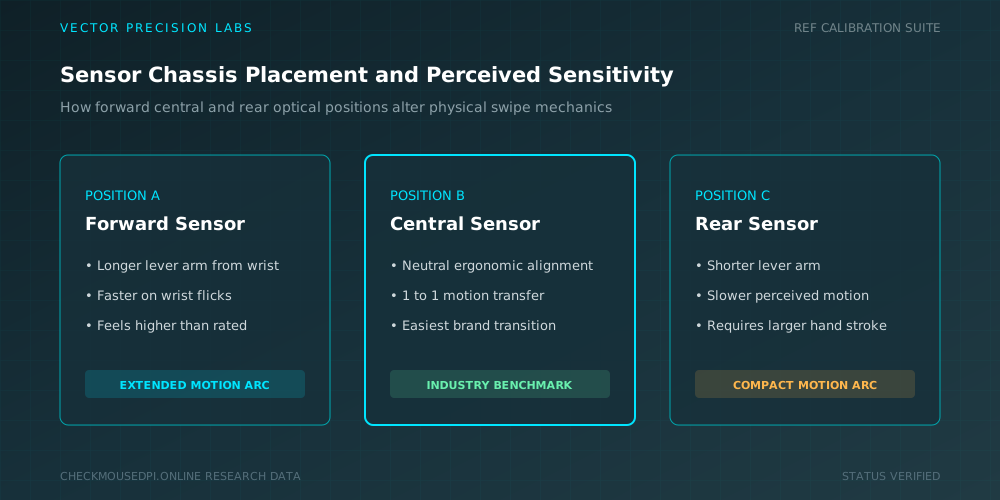
The mouse sensor sits at the center of every DPI reading. An optical sensor and its lens determine how the device interprets movement across a surface before that data ever reaches the DPI setting you selected.
Two devices built around the same sensor chip can still diverge because of small differences in mounting height, lens curvature, or internal firmware tuning applied by each manufacturer.
Calculate eDPI for a Fair Comparison
Raw DPI alone cannot tell the whole story, which is why serious testers rely on eDPI instead. Multiplying your chosen DPI by your in-game or software sensitivity produces a single number that reflects actual pointer travel.
Once you know how to calculate eDPI for each mouse, comparing brands becomes far more accurate than trusting the DPI figure printed on the box.
Match cm/360 Across Different Mice
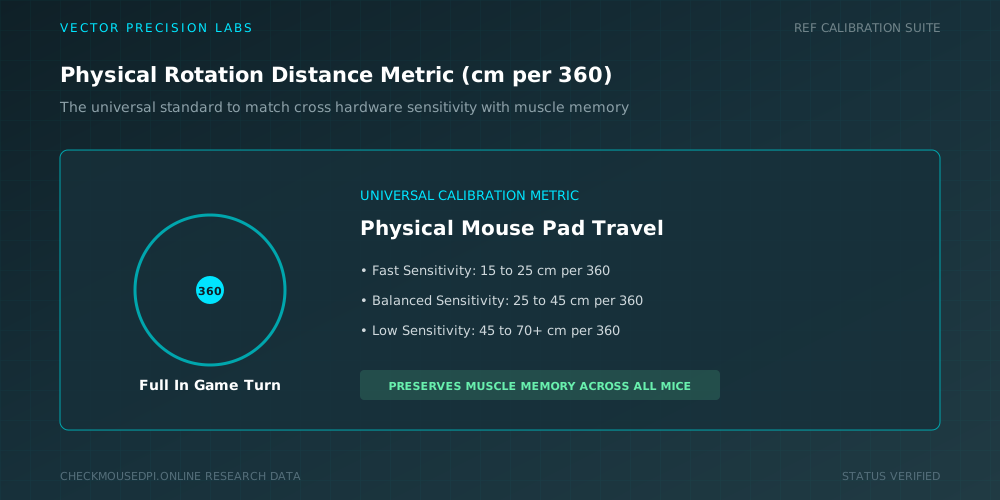
Gamers often lean on cm/360 as a practical way to keep aim consistent across hardware. This measures the physical distance the mouse must travel to complete one full turn in a game.
Adjusting DPI or sensitivity on a new mouse until the cm/360 figure matches your usual setup helps preserve muscle memory even when switching to a completely different brand.
Check How Firmware Affects Sensitivity
Firmware quietly influences how raw sensor data becomes an actual DPI output. An outdated firmware version can produce slightly different tracking behavior than the same mouse running the latest release.
Checking for updates before testing removes one more variable, ensuring any difference you notice comes from hardware rather than outdated internal software.
Compare Polling Rate and Tracking Consistency
Polling rate determines how often a mouse reports its position to your computer, and mismatched rates between two devices can make identical DPI values feel inconsistent.
Testing tracking consistency at matching polling rates gives a cleaner picture of how each sensor actually performs under the same conditions.
Key Factors That Affect a Fair Comparison
The table below summarizes the main factors worth checking before trusting any side-by-side DPI comparison between brands.
| Factor | Effect on Feel | What to Do |
|---|---|---|
| Sensor Model | Different tracking at same DPI | Compare sensor chip, not brand |
| Polling Rate | Changes update smoothness | Match rate before testing |
| Mouse Weight | Alters perceived speed | Note weight difference separately |
| Surface Material | Affects glide and tracking | Test all mice on one pad |
| Firmware Version | Can shift true sensor output | Update all mice first |
Account for Mouse Weight and Surface Material
Mouse weight changes how fast a movement feels even when the DPI stays identical, since a heavier device naturally resists quick flicks more than a lighter one.
Surface material plays a similar role, so testing every mouse on the same mousepad keeps glide and friction from skewing your results.
Avoid Mouse Acceleration During Testing
Mouse acceleration adds an extra layer of variability by changing cursor response based on how fast you physically move your hand, rather than keeping a consistent ratio.
Turning this feature off in every operating system and driver menu before testing ensures the comparison reflects pure hardware performance instead of software interference.
Use Raw Input Settings for Accurate Results
Enabling raw input settings wherever a game or application allows it bypasses extra processing layers that can distort the true feel of a given DPI value.
This step matters most when comparing brands that apply their own smoothing or prediction algorithms differently inside the mouse driver software.
Trust Testing Over Brand DPI Marketing
Marketing copy often highlights an impressive maximum DPI figure without explaining how usable that number actually is once interpolation and sensor limits come into play.
Hands-on testing, rather than the number printed on a box, remains the only reliable way to know how a mouse will truly feel once it replaces your current one.
Conclusion
Learning to compare mouse DPI across different brands comes down to testing rather than trusting labels alone. Sensor differences, firmware, polling rate, and physical build all shape how identical numbers translate into real movement.
Using eDPI, matching cm/360, and controlling variables like acceleration and surface material give you a comparison you can actually trust, no matter which brands sit side by side on your desk.
Dr. Marcus Vance (Hardware Lab)
Researches human-computer interaction, optical sensor telemetry, and esports hardware performance at Vector Precision Labs.