How to Fix Mouse DPI That Keeps Changing on Its Own
A cursor that suddenly speeds up or slows down mid-task is more than annoying. Mouse DPI should stay fixed until you change it yourself.
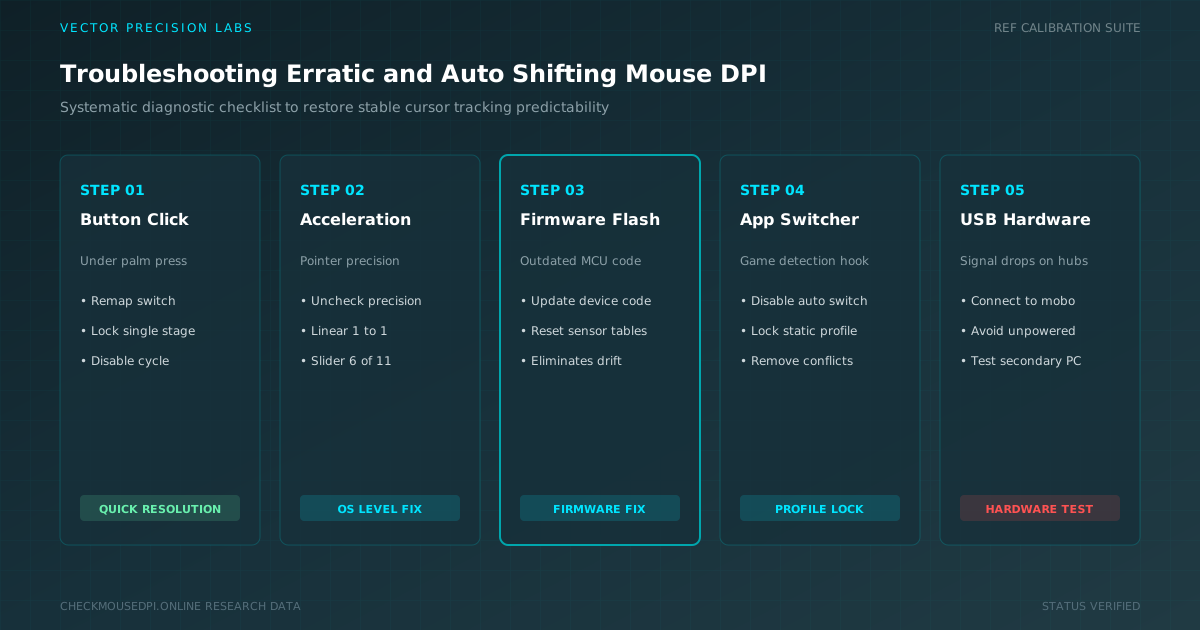
A cursor that suddenly speeds up or slows down mid-task is more than annoying, it breaks concentration and ruins aim during gaming. Mouse DPI should stay fixed until you change it yourself, so when the setting drifts without warning, something behind the scenes usually needs attention.
Why Your Mouse DPI Changes Without Warning
Several unrelated issues can trigger sensitivity changes automatically, from stray button presses to outdated software fighting over control of the sensor.
Working through each possible cause in order, starting with the simplest, usually narrows down the real source faster than guessing at a single fix.
Check for Accidental DPI Button Presses
Most gaming mice place a DPI button near the palm or thumb rest, exactly where a firm grip can brush against it during intense movement.
Reviewing your grip style, or remapping that button to something less sensitive, often resolves what looks like a mysterious DPI resetting problem.
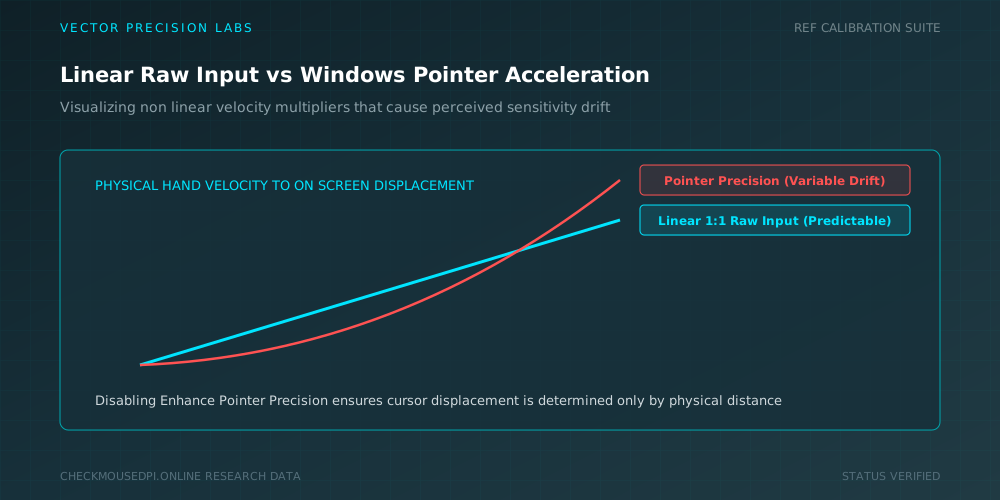
Disable Enhance Pointer Precision in Windows
The enhance pointer precision option inside Windows mouse settings adds acceleration that can make cursor speed feel inconsistent, especially when combined with a custom pointer scale.
Turning this checkbox off restores a clean, predictable relationship between hand movement and cursor response.
Update or Reinstall Your Mouse Firmware
Outdated mouse firmware can cause the sensor to misreport its own settings, leading to brief spikes that correct themselves seconds later.
Downloading the latest firmware from the manufacturer and reflashing the device often eliminates this kind of unpredictable sensitivity drift.
Repair or Reset Your Mouse Software
Applications like Logitech G HUB, Razer Synapse, and Corsair iCUE occasionally corrupt their own configuration files, causing a saved DPI profile to misbehave.
Repairing or fully reinstalling the mouse software clears out damaged settings and usually restores normal, stable behavior.
Common Causes at a Glance
The table below lists the most frequent reasons DPI shifts unexpectedly, along with a typical warning sign and the fix worth trying first.
| Possible Cause | Common Sign | Quick Fix |
|---|---|---|
| Accidental button press | Sudden speed change mid-click | Check button mapping |
| Enhance pointer precision | Uneven cursor response | Disable in mouse settings |
| Outdated firmware | Random spikes during play | Update mouse firmware |
| Software conflict | Changes tied to specific apps | Close background tools |
| Faulty hardware | Issue persists after every fix | Test on another PC |
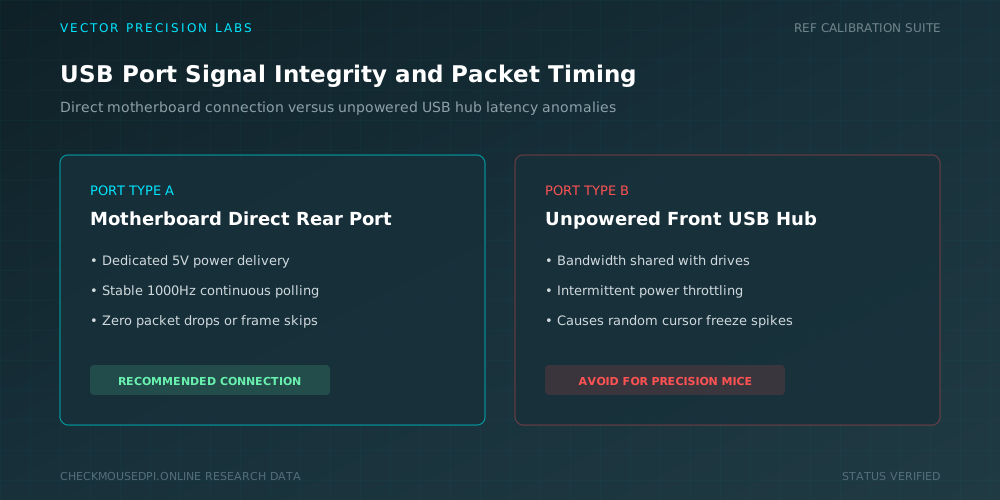
Switch to a Different USB Port
A weak or unstable connection through a front-panel hub or worn USB port can cause a wired mouse to lose signal integrity for a split second.
Plugging directly into a rear motherboard port, away from other high-power devices, often stabilizes a connection that was silently dropping data.
Turn Off Game-Specific Sensitivity Settings
Some manufacturer software links a DPI profile to a specific game through SDK settings, automatically swapping sensitivity the moment that title opens.
Disabling this game-specific automation inside the companion app keeps one consistent DPI active no matter which program is running in the foreground.
Remove Conflicting Third-Party Software
Overlay tools, older mouse utilities, and leftover drivers from a previous device can create a genuine third-party software conflict that silently overrides your intended DPI.
Uninstalling unused mouse software and checking for leftover background processes removes this hidden source of interference.
Test for a Faulty Mouse or Sensor
If every software fix fails, the problem may sit inside the hardware itself. A faulty mouse or damaged mouse sensor can misreport its own state regardless of any setting applied.
Testing the device on a completely different computer helps confirm whether the issue follows the hardware or stays behind with the original setup.
Keep Your DPI Setting Stable Going Forward
Once the mouse behaves normally again, saving your preferred DPI directly to the device’s onboard memory, where supported, reduces reliance on background software.
Periodically checking for firmware and driver updates afterward helps catch small bugs before they grow into another round of unexplained sensitivity swings.
Conclusion
Fixing a mouse where DPI keeps changing on its own usually comes down to ruling out causes one at a time, from accidental button presses to outdated firmware and conflicting software.
Working through each step in order, then testing the hardware directly if nothing else helps, gives you the clearest path toward a stable, predictable cursor again.
Liam Chen (Peripherals Specialist)
Researches human-computer interaction, optical sensor telemetry, and esports hardware performance at Vector Precision Labs.