How to Know Which DPI Your Mouse Is Using
The speed of your mouse pointer is not always determined by Windows settings alone. Your mouse may already have a specific DPI value selected.
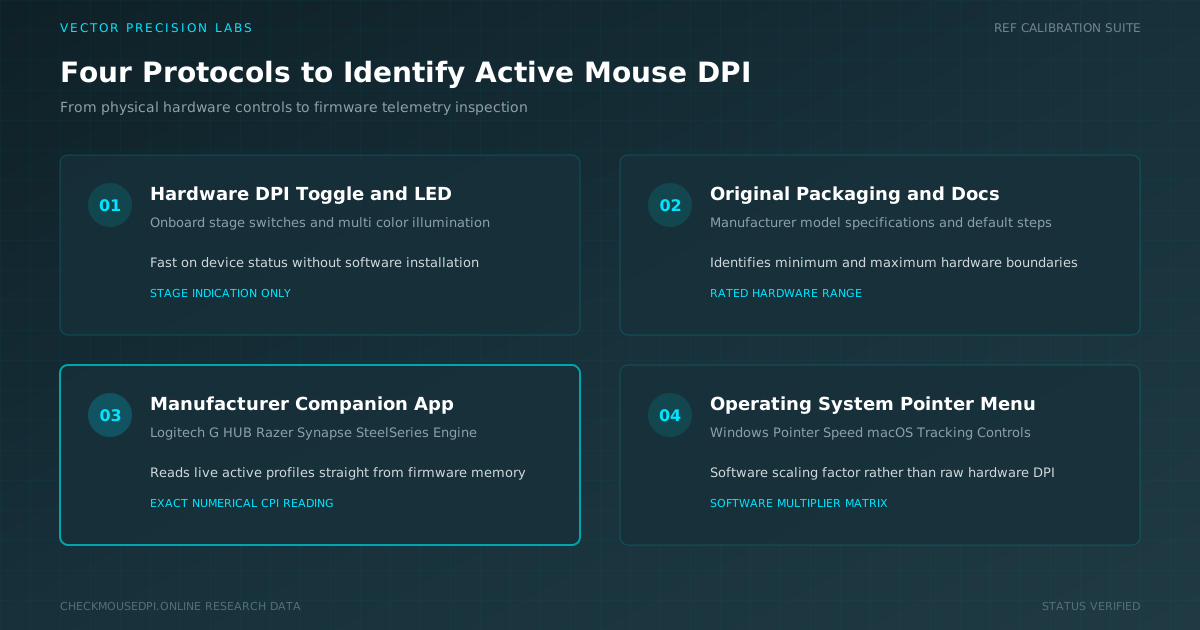
The speed of your mouse pointer is not always determined by Windows settings alone. Your mouse may already have a specific DPI value selected, even if you have never changed it yourself. Finding out which setting your mouse is using can help you understand its cursor speed, sensitivity, and overall behavior.
Why Your Current DPI Matters
Mouse DPI stands for dots per inch and describes how much movement your cursor receives from physical mouse movement. A higher DPI normally makes the pointer travel farther, while a lower setting provides more controlled movement.
Your current mouse DPI works together with mouse sensitivity settings, operating system options, and gaming sensitivity. Because these settings can affect each other, knowing your DPI gives you a clearer picture of your complete mouse setup.
Look for a DPI Button
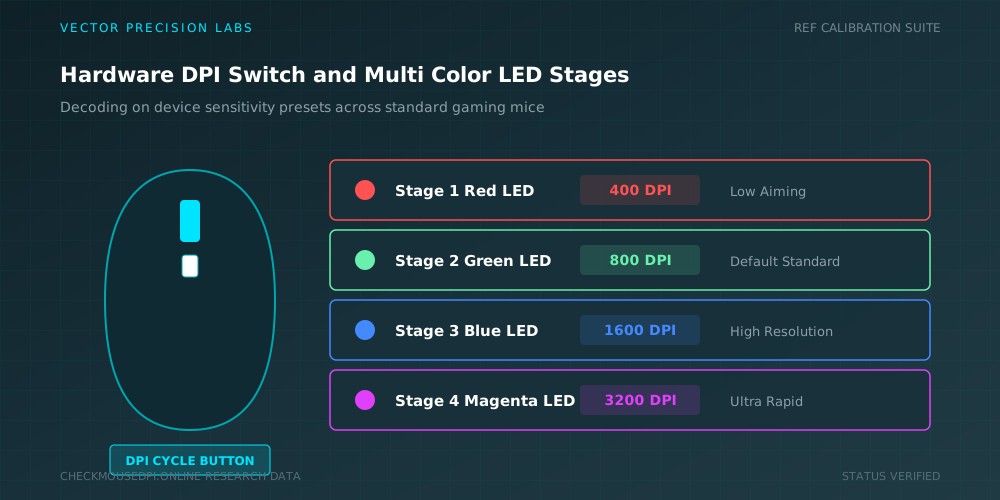
The first place to check is the mouse itself. Many gaming mice include a dedicated DPI button near the scroll wheel or underneath the device.
Pressing the DPI switch may cycle through several preset DPI stages. Some mice use LED indicators to show which level is currently active.
The meaning of each light can vary between models, so the product manual may be useful when identifying the selected DPI level.
Ways to Check Your Mouse DPI
The table below summarizes the main ways to identify your mouse DPI, along with what each method reveals and when it works best.
| Method | What It Shows | Best For |
|---|---|---|
| DPI Button / LED | Currently active DPI stage | Quick on-device check |
| Mouse Packaging | Supported DPI range | General specifications |
| Manufacturer Software | Exact active DPI and profiles | Precise, detailed reading |
| Windows Settings | Pointer speed, not hardware DPI | Software-level adjustments |
Check the Mouse Packaging
If the mouse does not clearly display its active DPI, look at the original packaging or product information.
Manufacturers often mention the supported DPI range in the specifications. This can tell you the minimum and maximum DPI levels available on the device.
However, the listed range does not necessarily tell you which DPI is currently selected. It simply explains the capabilities of the mouse and its mouse sensor.
Look at Manufacturer Software
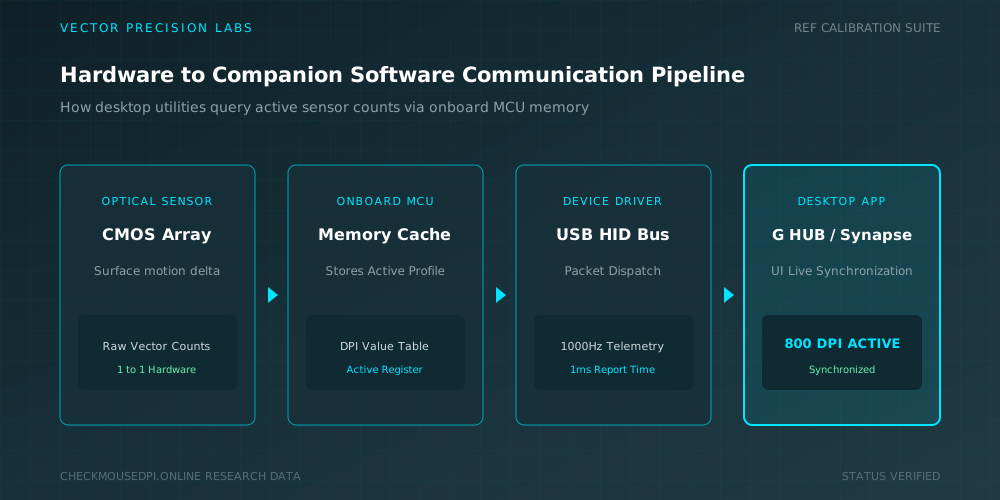
For supported gaming mice, manufacturer software is usually the easiest way to view DPI information.
Official mouse applications may display the active DPI value, available DPI stages, and saved DPI profiles. You may also find controls for button assignments, polling rate, and other performance settings.
Because the software communicates with the mouse driver, it can provide more precise information than simply judging cursor speed by eye.
Check the DPI Profile
Some mice allow users to save several DPI profiles. Each profile can contain different sensitivity levels for different activities.
For example, one profile may be designed for gaming, another for everyday browsing, and another for creative applications.
Checking your active DPI profile can explain why your mouse suddenly feels different. Accidentally switching profiles can change the cursor behavior without changing any Windows settings.
Review Windows Mouse Settings
Windows mouse settings can affect how your pointer behaves, but they normally do not display the physical DPI value stored inside the mouse.
The pointer speed slider changes how Windows processes mouse input. You may also see the enhance pointer precision option, which affects pointer behavior through Windows processing.
These settings should not be confused with the actual DPI of the mouse. A change in Windows pointer speed can make the cursor feel faster or slower while the hardware DPI remains unchanged.
Understand DPI and Sensitivity
DPI and sensitivity are closely connected, but they are not identical.
DPI comes from the mouse hardware and its sensor, while sensitivity settings can be applied by Windows or individual programs.
For gaming, in-game sensitivity adds another layer. Two players could use the same mouse DPI but have completely different gaming sensitivity settings.
Understanding this difference makes it easier to reproduce a comfortable setup across different games and applications.
Watch for Inconsistent Tracking
If your cursor does not behave consistently, the issue may not always be the selected DPI. Surface quality, sensor performance, and movement speed can influence mouse accuracy.
Some sensors may show pixel skipping when pushed beyond certain settings. A poor surface can also reduce tracking consistency.
Using a suitable mousepad and keeping the sensor clean can help maintain more predictable cursor movement.
Choose the DPI That Fits Your Work
After identifying the DPI levels available on your mouse, consider how each one feels during everyday use.
Higher DPI can reduce the amount of physical movement required to move the pointer across the screen. Lower DPI can provide more deliberate control for tasks requiring precise movements.
There is no universal DPI setting that works perfectly for everyone. Your preferred level depends on your mouse, screen resolution, working style, and mouse sensitivity preferences.
Change DPI When Needed
If your mouse has a DPI switch, you can often change the setting instantly. Pressing the button may move through the available DPI stages.
For more detailed control, mouse driver software may allow you to create custom DPI values instead of relying only on factory presets.
Saving these values in separate profiles can make switching between gaming, browsing, and editing much easier.
Conclusion
Knowing which DPI your mouse is using starts with checking its physical controls, product specifications, manufacturer software, and active DPI profile. Once you understand the relationship between DPI, pointer speed, and sensitivity, it becomes much easier to create a comfortable mouse setup for gaming, work, and everyday use.
Liam Chen (Peripherals Specialist)
Researches human-computer interaction, optical sensor telemetry, and esports hardware performance at Vector Precision Labs.