Where to Look for the DPI Button and Settings
Finding the DPI controls is easier when you know where manufacturers place them. Some mice have a dedicated button, while others use mouse software.
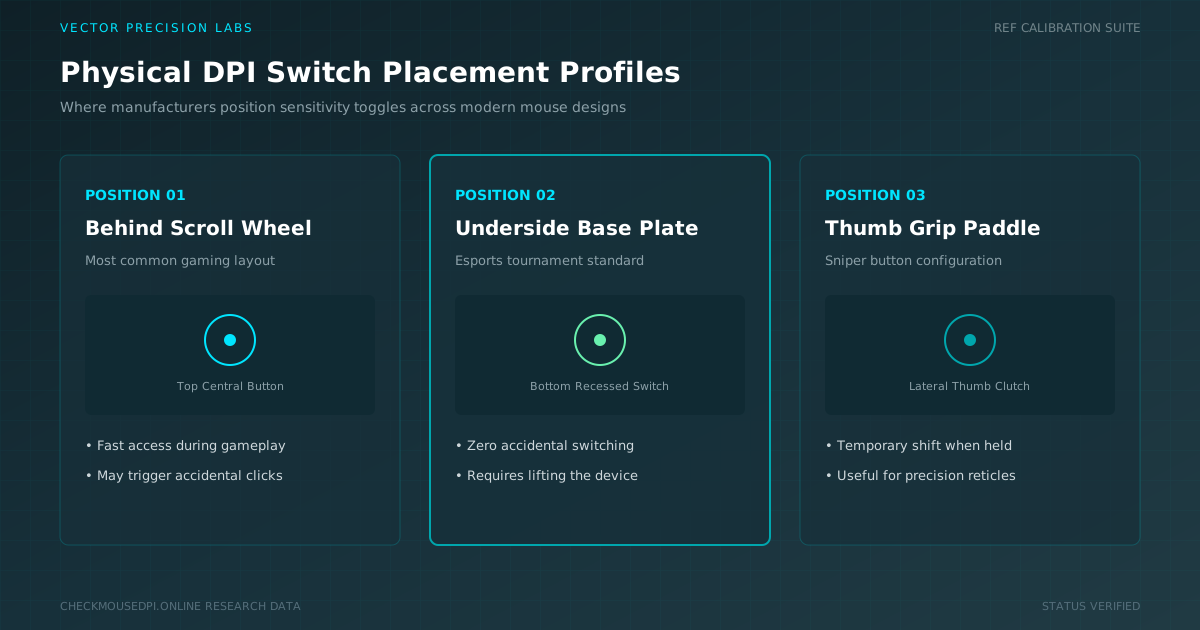
Finding the DPI controls is easier when you know where manufacturers place them. Some mice have a dedicated button, while others use mouse software. The DPI button location varies by model, so checking the mouse itself is the best starting point.
What Is Mouse DPI?
DPI controls how far the cursor moves when you move the mouse. Higher values create faster movement, while lower values provide more physical control. Your ideal setting depends on your screen, workspace, and daily tasks.
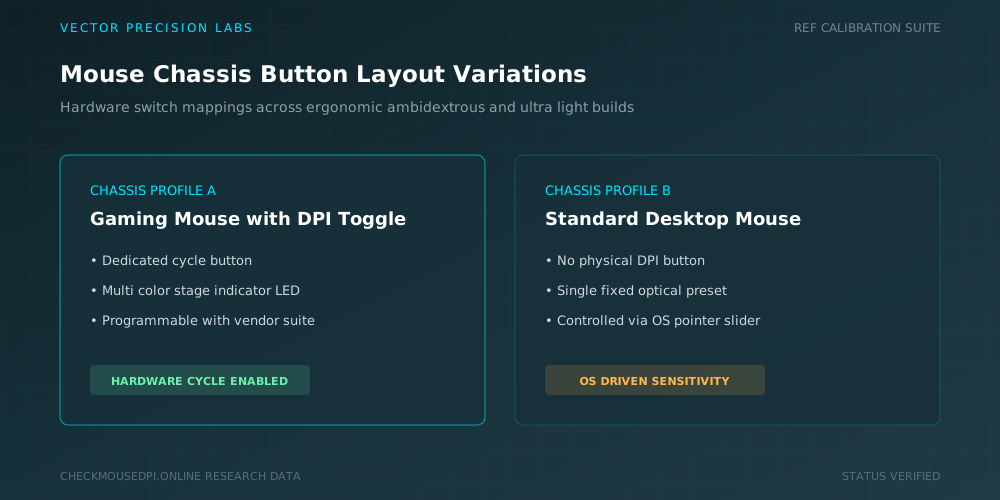
Many mice offer several DPI levels or preset sensitivity levels. A gaming mouse may include a DPI switch for quickly changing between settings. Basic mice may depend on Windows or Mac controls instead.
How to Check Mouse DPI
Look at the top of your mouse first. The mouse DPI button is often near the scroll wheel or slightly behind it. Some models place the control in a less obvious position.
Pressing the button may cycle through different settings. An LED indicator can show the selected level using different colors. These colors may represent DPI stages rather than showing the exact DPI number.
Ways to Check DPI at a Glance
The table below compares the main ways to check mouse DPI, along with what each method needs and how accurate the result tends to be.
| Method | What It Requires | Accuracy |
|---|---|---|
| Physical DPI Button | Mouse with built-in switch | Stage-level only |
| Manual Movement Test | Measured surface distance | Rough estimate |
| Online DPI Checker | Consistent movement, no acceleration | Estimated value |
| Manufacturer Software | Installed companion app | Exact hardware value |
Check DPI Without Software
You can inspect the mouse without installing software. Turn it over and look for the model name or product number. Manufacturer information can tell you whether the device includes a physical DPI button and which settings it supports.
You can also compare cursor movement manually. Move the mouse across the same measured distance and observe the pointer. This can show which setting is faster, although it may not reveal the actual DPI number.
Use an Online DPI Checker
An online DPI checker can estimate sensitivity by comparing physical movement with cursor movement. It can help when you cannot find a DPI button or do not have dedicated software available.
For better results, use the same surface and movement distance during testing. Avoid changing other pointer controls. Acceleration and system settings can affect results, so an online checker is better for estimation than confirming exact hardware DPI.
Check DPI on Windows
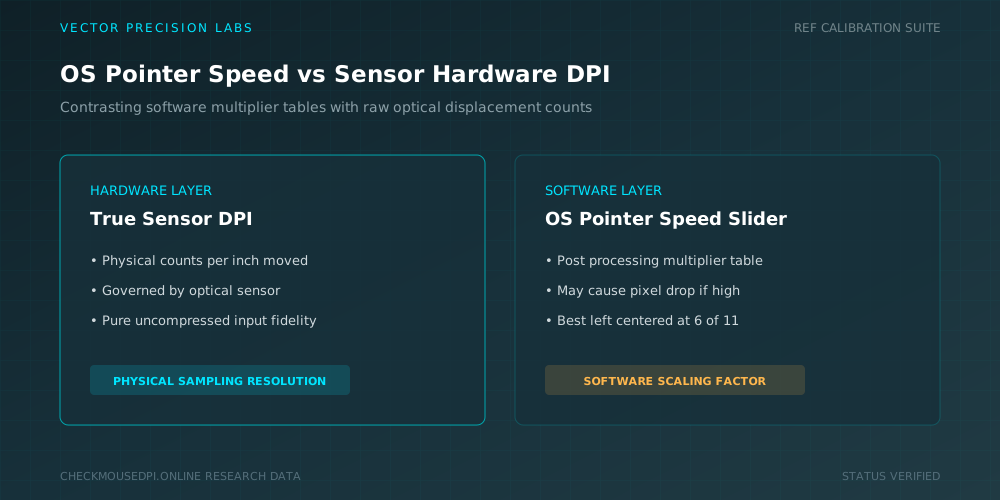
On Windows 10 and 11, basic mouse controls are available through Bluetooth & devices. The pointer speed slider changes how quickly the cursor responds to movement.
Windows pointer speed is separate from the mouse sensor’s DPI. You can also find Pointer Options for additional controls. Keep these settings unchanged when comparing different DPI values for more consistent results.
Check DPI Using Mouse Software
Dedicated manufacturer software usually provides the most detailed controls. DPI settings software can display available levels, create custom values, and sometimes save them directly to the mouse.
Popular applications include Logitech G HUB, Razer Synapse, Corsair iCUE, and SteelSeries GG. Depending on the brand, sensitivity may appear under a Performance tab or Sensitivity tab. A DPI profile can store different configurations.
How to Test Mouse DPI
Testing helps determine whether a setting feels comfortable and consistent. Place the mouse on the same surface and move it through an identical distance several times. Watch how far the cursor travels after each change.
Higher sensitivity can make large-screen navigation quicker. Lower settings can provide better control for detailed work. The best DPI adjustment is not necessarily the highest value. It should match your movement and the task.
How to Find Your Mouse DPI
If you cannot locate the setting, identify your mouse brand and model. This information is usually printed underneath the mouse or included with its packaging. Manufacturer documentation can reveal the supported DPI range and button layout.
Wireless mice may need their companion application for complete control. Some save settings inside the device, while others rely on software. Checking the exact model prevents confusion between similar-looking products.
How to Check DPI Accuracy
DPI accuracy can be checked through software and physical testing. Software shows the configured value, while repeated movement tests help determine whether the mouse responds consistently.
Keep your surface and system settings unchanged during testing. On Mac computers, Mac mouse settings and macOS settings can affect pointer movement separately from the sensor. Therefore, cursor sensitivity does not always equal physical DPI.
Change Your Mouse DPI
Once you know where to look for the DPI button and settings, changing sensitivity becomes simple. Use the physical control for quick switching or open the manufacturer’s application for more precise adjustments.
For everyday browsing, moderate sensitivity may feel comfortable. Detailed work can benefit from slower movement, while gaming preferences vary. Save your preferred DPI setting if your mouse supports profiles.
Conclusion
Knowing where to look for the DPI button and settings makes mouse customization easier. Check the physical controls first, then use manufacturer software or operating-system settings when needed. Understanding DPI separately from pointer speed helps you create a comfortable and consistent mouse setup.
Liam Chen (Peripherals Specialist)
Researches human-computer interaction, optical sensor telemetry, and esports hardware performance at Vector Precision Labs.