Where to Look Up Your Mouse's DPI Range
Find your mouse DPI range, maximum sensor resolution, and supported DPI levels using tech spec sheets, companion software, and sensor models.
Your mouse flies across the screen or drags like it’s stuck in mud. The fix usually starts with one number. Knowing your mouse DPI range tells you how far the pointer travels per inch of hand movement. Finding that number takes about two minutes once you know where to look.
Where to Find Your Mouse DPI Information
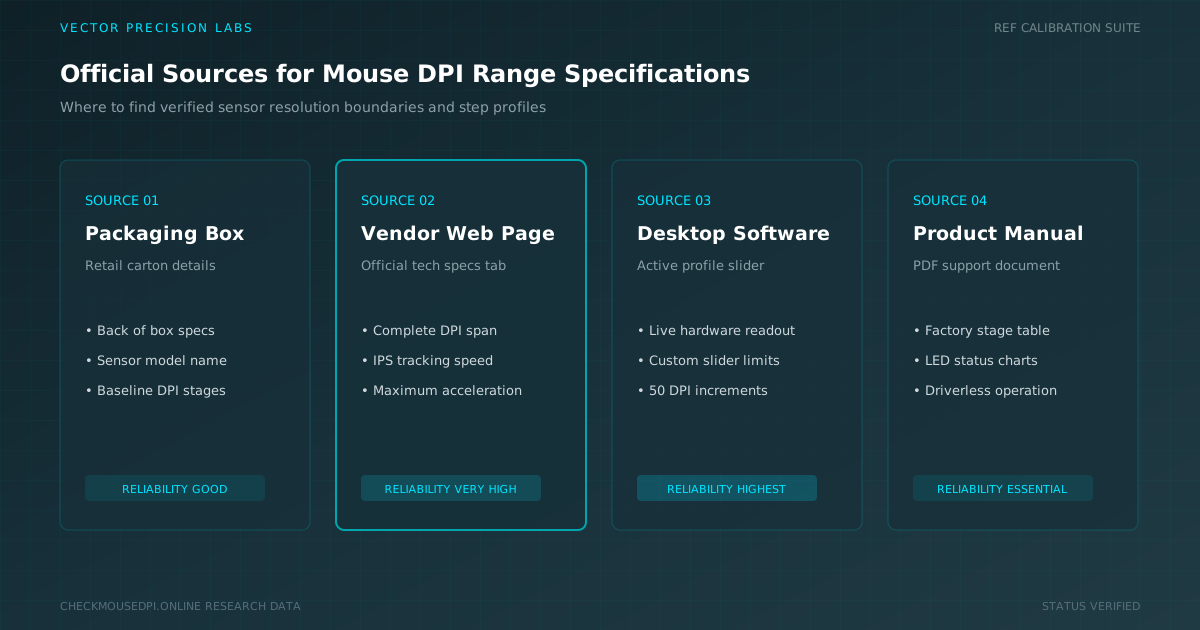
Four places hold the answer. The box it came in, the manufacturer website, the product manual, and the mouse software installed on your desktop. Cheap office models often list a single DPI value. A gaming mouse usually advertises a wide span instead.
Start with whichever source sits closest. Product packaging works if you kept it. Otherwise search the model name online. Third-party blogs sometimes copy wrong numbers so trust the official specifications and the mouse DPI range printed there.
Quick Comparison of DPI Sources
The table below compares the main places to look up DPI information, along with what each one reveals and how reliable it tends to be.
| Source | What It Shows | Reliability |
|---|---|---|
| Product Packaging | Basic DPI value or range | Good if kept |
| Manufacturer Product Page | Full official DPI span | Highly reliable |
| Mouse Software | Live, current DPI setting | Most accurate |
| User Manual (PDF) | DPI levels chart and LED guide | Reliable, older mice |
Where to Check Your Mouse’s DPI Specifications
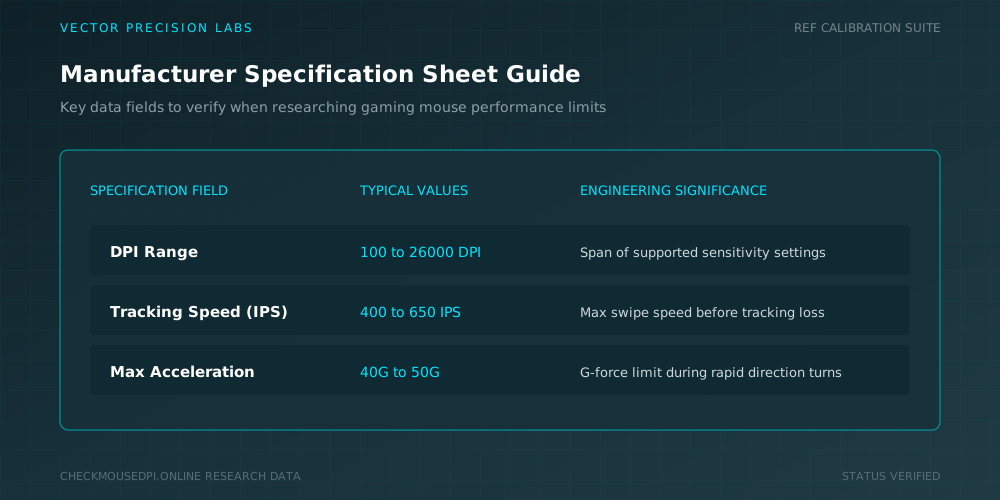
The spec sheet lists mouse specifications in a tidy block near the page bottom. Look for tracking resolution, polling rate, and acceleration. Sensor performance figures sit in that same block. The number you want appears as a range such as 100 to 26000.
Where to Find the Maximum and Minimum DPI
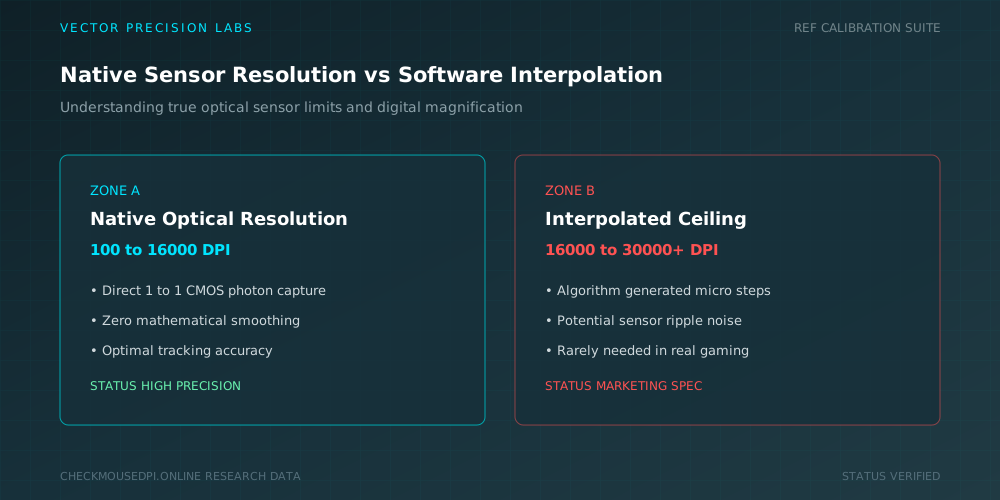
Maximum DPI headlines the marketing copy because big numbers sell. Minimum DPI hides in the fine print yet matters more for slow precise work. A sensor rated 50 to 30000 gives you enormous room. Most people settle between 800 and 1600.
Where to See Your Mouse’s Supported DPI Levels
Supported DPI steps differ from the raw range. Many budget mice cycle through fixed preset DPI levels like 800, 1200, and 1600. Higher-end models let you type any exact DPI you want. The manual states which behavior applies to yours.
Where to Find DPI Range on the Product Page
Manufacturer product page listings beat retail listings every time. Amazon descriptions get written by sellers who guess. Head to Logitech, Razer, SteelSeries, or Corsair directly. Their tech tab spells out the full span without exaggeration or rounding.
Scroll past the hero images to the specifications drawer. Brands bury it under a collapsed heading labeled Tech Specs. One click reveals the mouse sensor model too. Knowing that sensor name unlocks deeper data on mouse sensitivity limits.
Where to Check DPI in Mouse Software
DPI settings software gives you the live answer. Logitech G HUB, Razer Synapse, and SteelSeries GG each display your current DPI on the main dashboard. The slider maxes out where the hardware stops. That ceiling defines your mouse DPI range.
Manufacturer software also stores DPI profiles for different tasks. Build one profile for spreadsheets and another for shooters. DPI adjustment happens instantly with no restart required. Windows mouse settings handle pointer speed separately so leave that slider centered.
Where to Look for Your Mouse Sensor Details
The sensor inside the mouse determines everything. PixArt PAW3395 and Hero 25K appear in most premium builds today. Search the sensor name to find its native resolution. That figure represents the honest ceiling before software interpolation inflates the marketing claim.
Where to Check Your Mouse’s DPI Settings
Your DPI setting lives in three possible spots. The companion app, the onboard memory, and the DPI button on top of the shell. Pressing that DPI switch cycles stages while an LED changes color to confirm the active stage.
Where to Find DPI in the User Manual
Paper manuals get tossed. PDF copies live forever on the support page. Search the model number plus the word manual. Page two usually carries a DPI levels chart covering the whole mouse DPI range.
Older mice without software rely entirely on this document. It also explains which LED color maps to which stage. Keep a copy in your downloads folder. Future troubleshooting goes quicker when DPI range information sits one click away.
Where to Find the Official DPI Range for Your Mouse
Manufacturer specifications settle every argument about your mouse DPI range. Cross-check the number against an online analyzer when the feel seems wrong. Measure a fixed distance on a mousepad then compare pointer travel. Mismatches point to drivers rather than hardware.
Your actual DPI can drift from the label by a few percent. That variance stays normal across brands. Testing once gives you a baseline to trust. Most users never need the top end because 1600 covers gaming and office work comfortably.
Conclusion
Four sources point to one number. Packaging, the product page, software, and the manual all reveal what your hardware supports. Check the software first because it shows live data. Then confirm against the brand page. Verification takes seconds and saves months of frustration.
Dr. Marcus Vance (Hardware Lab)
Researches human-computer interaction, optical sensor telemetry, and esports hardware performance at Vector Precision Labs.